
live wedding photo slideshow
Your guests’ photos on the big screen, moments after they share them.
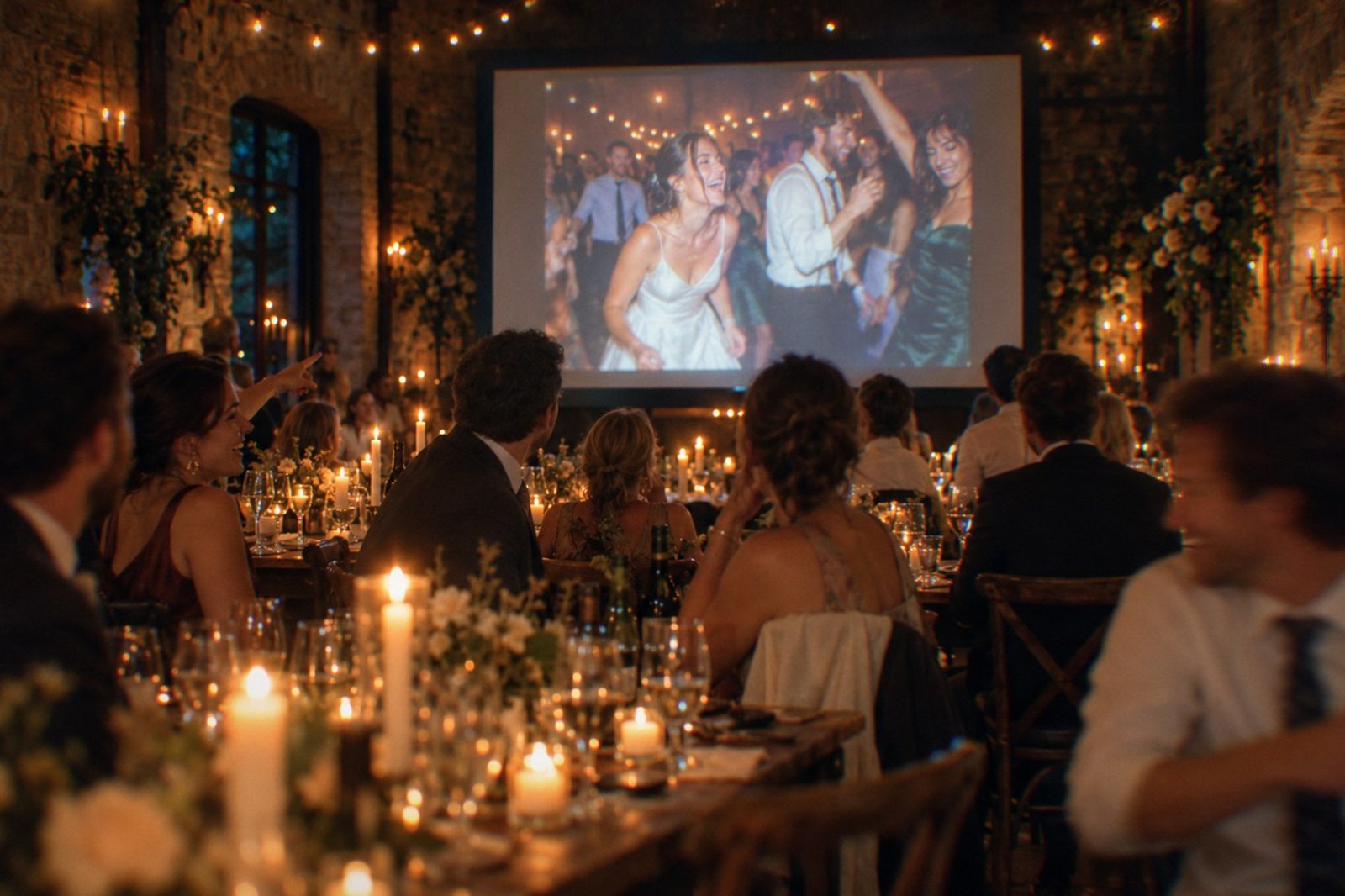
A live wedding slideshow shows the photos your guests are taking on a TV or projector while the reception is still going. With WearableWedding, a guest taps their band, adds a photo, and Reception Mode puts it on the wall with their name, checking for new arrivals every 12 seconds. Only photos shared with everyone appear.
What is a live wedding photo slideshow?
A live wedding slideshow, sometimes called a photo wall, is a screen at the reception that shows guests’ photos as they are taken. It turns the album you would otherwise open weeks later into something the whole room watches together, and it quietly tells every guest that their photos are wanted.
It is not the slideshow most couples already know, the montage of childhood and engagement photos that plays once during dinner. A live wall has no fixed playlist. It grows all night from the phones in the room, which is exactly why people keep glancing at it to see whether their shot made it up.
How does Reception Mode work?
Reception Mode is the live wall built into every WearableWedding album. There is nothing extra to install or rent, and it runs in a normal web browser:
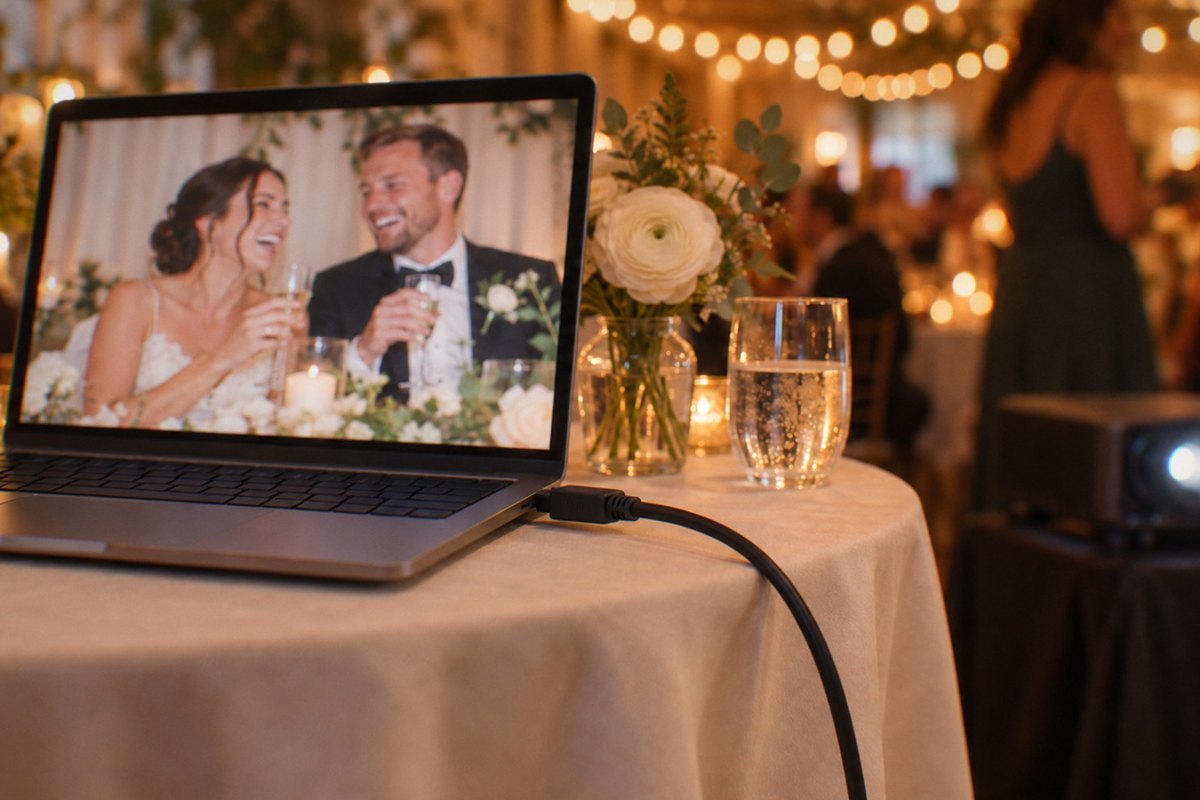
- Before the reception, open your wall’s link on a laptop connected to the venue’s TV or projector and press Start the show. The page goes full screen and asks the browser to keep the display awake.
- During the evening, guests tap their band to their phone, or scan the code printed on it, and add photos from their camera roll. Guests without a band scan the code in the corner of the wall or on a printed table card.
- Every 12 seconds the wall checks for new photos and moves fresh arrivals to the front of the queue, newest first, each one captioned with the name of the guest who shared it.
- Each photo holds the screen for about 7.5 seconds with a slow drift, and portrait shots sit on a soft blurred backdrop instead of black bars.
- After every six photos, a guest-book wish or your own note to the room takes the screen, once guests have signed the guest book or you have written a note. Running counters at the top show how many photos, guests and reactions the night has gathered.
What shows on the big screen, and what never does?
Every guest chooses who can see each upload: everyone with the album link (the setting the album starts on), friends only, or just the two of you. The wall only ever shows photos shared with everyone. Friends-only and couple-only photos never reach the big screen. Guest-book wishes appear on the wall too, with the guest’s name, and a wish you hide leaves the wall within about 12 seconds.
You can also hide any photo from the album yourselves. The wall keeps the photos it has already loaded, so a photo you hide during the reception leaves the rotation the next time the wall page is reloaded. If you want a human safety net, ask one friend to sit by the laptop: the space bar pauses the wall, the right arrow skips to the next photo, and refreshing the page (then pressing Start the show) drops anything you have hidden.
What do you need at the venue?
Less than most couples expect. If the venue’s screen can show a laptop, it can run the wall.
| What | What works | Good to know |
|---|---|---|
| Screen | Any TV with an HDMI input, or a projector and screen | Place it where people walk past, not behind the head table |
| Computer | A laptop with a current web browser | Keep it plugged in; the show runs for hours |
| Cable | HDMI, plus any adapter your laptop needs | Test the exact cable at your venue walkthrough |
| Internet | Venue Wi-Fi or a phone hotspot | The wall retries on its own after a dropout; keep a phone hotspot as a backup |
| Software | Nothing to install | The wall is a web page, and guests need no app either |
| Sound | Not needed | The wall is silent, so it never competes with the music |
How fast do guests’ photos appear?
Fast enough that people look up from their phone and find their own photo on the wall. These are the real timings Reception Mode uses:
| Check for new photos | Every 12 seconds |
|---|---|
| Where a new photo goes | To the front of the queue, newest first |
| Time on screen per photo | About 7.5 seconds |
| Guest-book wish or couple’s note | After every 6 photos, for about 8.5 seconds |
Live wall, pre-made slideshow or photo booth?
They do different jobs, and plenty of receptions run two of them. The live wall is the only one built from your guests’ own phones.
| Compared on | Live guest-photo wall | Pre-made slideshow | Photo booth |
|---|---|---|---|
| Whose photos | Every guest’s phone | Yours, chosen in advance | The booth’s camera only |
| When it’s made | Live, all evening | Weeks before the wedding | During the reception |
| Guest effort | Tap or scan, then pick photos | None, guests watch | Queue at the booth |
| What it needs | A screen, a laptop and internet | A screen and a video file | A rental, floor space and an attendant |
| What you keep | Every shared photo, in one album | The video you already had | Prints or files from the booth |
How do you get guests to watch it?
- Start the show at cocktail hour, not after dinner. The first photos on the screen are the invitation everyone else needs.
- Add a short note from the two of you in your account. It appears between photos and reads like a small toast.
- Mention the album’s built-in photo quests in a toast. A photo tagged with a quest shows its prompt on the wall.
- Set a printed table card near the bar for late plus-ones and anyone without a band.
- Dim the lights nearest the screen, and keep it out of direct sun if your reception starts in daylight.
- Run the wall once at your venue walkthrough with the actual laptop, cable and Wi-Fi.
Questions
Do guests need an app for the live slideshow?
No. A guest taps their band to their phone, or scans its printed code, and the album opens in the phone’s browser. Photos they share with everyone join the wall at its next 12-second check. There is nothing to download and no account to create.
Can an embarrassing photo end up on the big screen?
It can, if a guest shares it with everyone, which is the album’s starting setting; friends-only and couple-only photos never appear. Anyone who scans the wall’s code can add photos too. You can hide any photo from the album, and a hidden photo leaves the wall the next time the wall page is reloaded. In the meantime, a friend sitting by the laptop can pause the wall with the space bar or skip a photo with the right arrow.
What equipment do we need for a live wedding slideshow?
A TV or projector with an HDMI input, a laptop with a current browser, the right cable, and internet from the venue Wi-Fi or a phone hotspot. There is no software to install and no sound to manage.
What happens if the venue Wi-Fi drops?
The wall keeps running and retries in the background, then picks up new photos within about a minute of the connection returning. Photos load over the internet, so a long dropout can interrupt the show; a phone hotspot is a good backup if your venue’s Wi-Fi is known to be weak.
Is Reception Mode included or extra?
It is included. The shared album and the live reception wall come with every WearableWedding order. You pay per band, and the pricing page lists every quantity tier.
Can guests without a band add photos to the wall?
Yes. The wall shows a code guests can scan, and you can print table cards with the same code. Everyone who scans adds to the same album.
See it live, then design your bands
Open a real demo — no sign-up, nothing to download.
